> ## Documentation Index
> Fetch the complete documentation index at: https://docs.mago.studio/llms.txt
> Use this file to discover all available pages before exploring further.
# Projects shots renders
# Projects, Shots & Renders
[← Application Layout](/guide/app-layout) · [User Guide](/guide/overview) · [Next: Credits, Plans & Modes →](/guide/credits-plans-modes)
***
Mago organizes work into a three-level hierarchy. Understanding it is essential to everything else.
```mermaid theme={null}
flowchart TD
P[Project
a film, sequence, series, or campaign] --> S1[Shot]
P --> S2[Shot]
P --> S3[Shot]
S2 --> R1[Render track]
S2 --> R2[Render track]
S2 --> R3[Render track · iterated]
classDef src fill:#fde,stroke:#b59
```
| Level | Contains | Typical scope |
| ------------------ | ------------------------------------------------------ | --------------------------------------- |
| **Project** | Multiple shots, optionally in folders | A film, sequence, series, or campaign |
| **Shot** | Multiple render tracks, all from the same source video | A single shot from the project |
| **Render (track)** | One generated output | A single render attempt — many per shot |
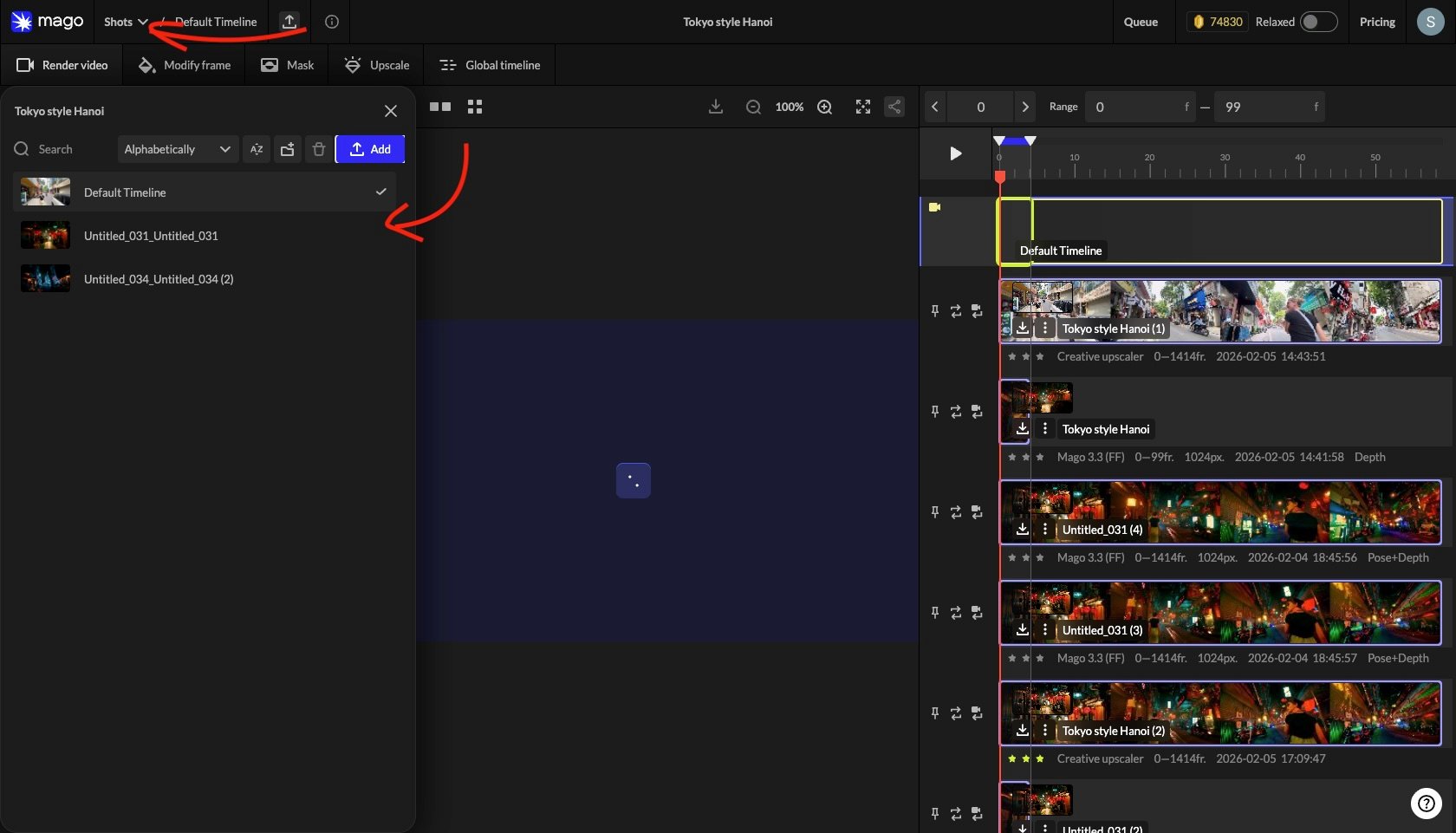 ## Project operations
* Create a new project from the Projects tab.
* Rename by double-clicking the project name in the top bar or project list.
* Delete from the project list.
* Search the project list by name.
* Sort by creation date or alphabetically, ascending or descending.
* Create folders, including nested subfolders.
* Drag projects into folders to organize.
## Shot operations
* Add a new shot inside the current project.
* Rename by double-clicking the shot name.
* Delete from the shot list.
* Search and sort within the project.
* Organize shots in folders.
> **📐 Design note** — Mago is built around shot-by-shot workflows. Don't upload an entire scene as one source video. Split scenes into shots in an external editor first, then upload each shot — it makes iteration faster, settings more transferable, and review cleaner.
## Project statistics
Each project has a statistics panel, opened via the ℹ️ icon next to the shot name. It shows:
* Total renders made on the project.
* Total frames generated.
* Total cost in credits.
* Cost per frame (average) and cost per second (average).
* Per-render breakdown: model, frame range, and credit cost.
* Most-used models on the project.
Useful for tracking the cost of arriving at a final look, and for reviewing which model and settings produced the best results.
## Render tracks
Every render produces a new track in the shot's vertical timeline, stacked below the source. Tracks can be rated, renamed, used as input for further renders (via **Edit this Render**), and downloaded.
Full detail: [Timeline & tracks](/guide/timeline-and-tracks).
***
[← Application Layout](/guide/app-layout) · [User Guide](/guide/overview) · [Next: Credits, Plans & Modes →](/guide/credits-plans-modes)
## Project operations
* Create a new project from the Projects tab.
* Rename by double-clicking the project name in the top bar or project list.
* Delete from the project list.
* Search the project list by name.
* Sort by creation date or alphabetically, ascending or descending.
* Create folders, including nested subfolders.
* Drag projects into folders to organize.
## Shot operations
* Add a new shot inside the current project.
* Rename by double-clicking the shot name.
* Delete from the shot list.
* Search and sort within the project.
* Organize shots in folders.
> **📐 Design note** — Mago is built around shot-by-shot workflows. Don't upload an entire scene as one source video. Split scenes into shots in an external editor first, then upload each shot — it makes iteration faster, settings more transferable, and review cleaner.
## Project statistics
Each project has a statistics panel, opened via the ℹ️ icon next to the shot name. It shows:
* Total renders made on the project.
* Total frames generated.
* Total cost in credits.
* Cost per frame (average) and cost per second (average).
* Per-render breakdown: model, frame range, and credit cost.
* Most-used models on the project.
Useful for tracking the cost of arriving at a final look, and for reviewing which model and settings produced the best results.
## Render tracks
Every render produces a new track in the shot's vertical timeline, stacked below the source. Tracks can be rated, renamed, used as input for further renders (via **Edit this Render**), and downloaded.
Full detail: [Timeline & tracks](/guide/timeline-and-tracks).
***
[← Application Layout](/guide/app-layout) · [User Guide](/guide/overview) · [Next: Credits, Plans & Modes →](/guide/credits-plans-modes)